
Understanding Storage Drivers in simple computer language.
Storage drivers manage reading and writing data on your internal drives, ensuring files are saved accurately and can be retrieved quickly without corruption.
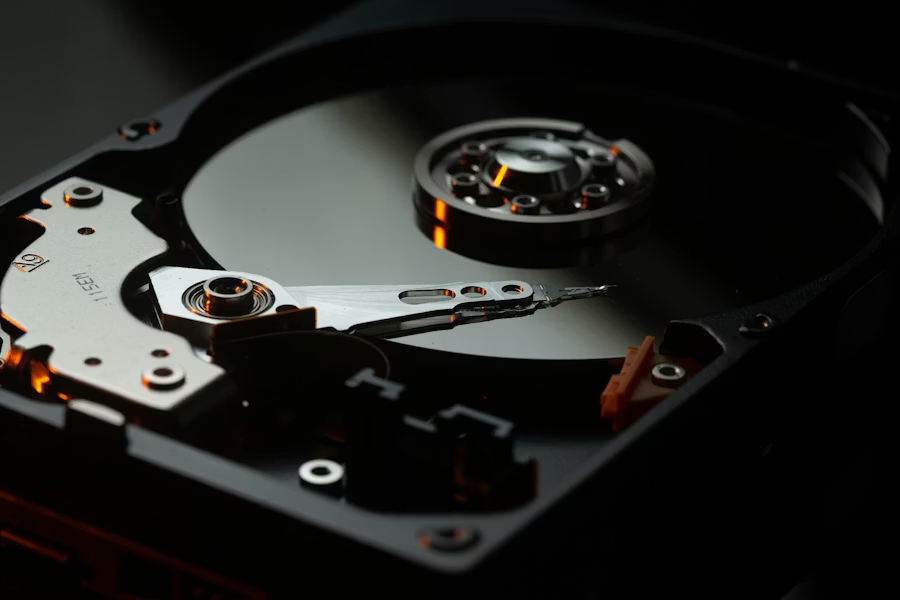
What this driver category helps explain
Storage drivers follow different sets of rules depending on how fast your drive is. Older drives use one set of rules, while modern, ultra-fast memory drives use a much more advanced system. These newer drivers are designed to handle thousands of requests at the same time, which is why a computer with a modern drive starts up and opens programs so much faster than older machines.
Another vital role is managing the lifespan of the hardware. Modern storage chips have a limited number of times they can be written to. The driver works behind the scenes to spread the data evenly across the entire drive so that no single part wears out too quickly. It also performs 'cleanup' tasks, telling the drive which areas are no longer being used so the hardware can stay organized and fast over time.
How Storage Drivers support device communication.
This section breaks the topic into clear learning points. Each role explains one part of how the driver helps the operating system communicate with the related hardware device.
Data Accuracy
The driver ensures that your files are written to the disk with perfect precision by checking every piece of data for errors before it is saved. It follows a strict set of rules to place information in the safest spots on the hardware so that it can be retrieved without any damage later. This careful writing process is the primary defense against "corrupted" files that can't be opened.
Speed Boost
By optimizing the way information is saved and loaded, the driver makes the entire computer feel more responsive and "snappy." It organizes the data so that the hardware can find what it needs in the shortest time possible, reducing the wait when you open a big program. This intelligent filing system allows your machine to spend less time searching and more time working.
Drive Health
The driver acts as a constant watchman for the health of your hardware, looking for early warning signs that the drive might be wearing out. It tracks how many times different areas have been used and moves data around to prevent any single spot from being overused. This proactive management helps you avoid sudden data loss by giving you a warning before the hardware fails.
Common signs learners may notice.
These signs are included for education, helping readers understand how communication gaps may appear when a device and system are not exchanging information smoothly.
Folders Freezing Frequently
Boot Device Missing
Constant Startup Error Checks
Files Disappearing Suddenly
Drive Light Always On
Understanding the process.
When you save a file, the system sends the data to the storage driver. The driver looks at the drive's internal filing system to find an empty spot. It then translates the data into physical instructions—like magnetic changes or electrical charges—that the drive hardware uses to store the info. When you open the file, the driver reverses this, finding all the scattered pieces and bringing them together.
The AHCI and NVMe rules define how the driver organizes the massive flow of data to and from a storage device.
TRIM is a driver command that helps modern memory-based drives stay fast by identifying unused data areas.
Wear leveling is a technique where the driver ensures data is written to different parts of a drive to prevent wearing out one spot.
Data integrity checks are performed by the driver to ensure that the information read from a disk matches what was originally written.
Continue learning across driver categories.
Explore the complete directory and understand how different hardware devices communicate with the operating system.
Explore More Topics